Before you start…
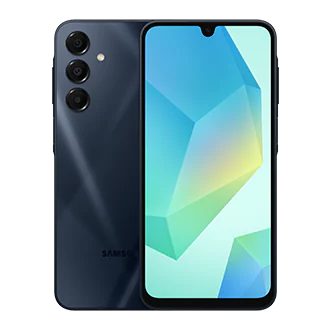
- Buy a Sayph phone for your child or teen
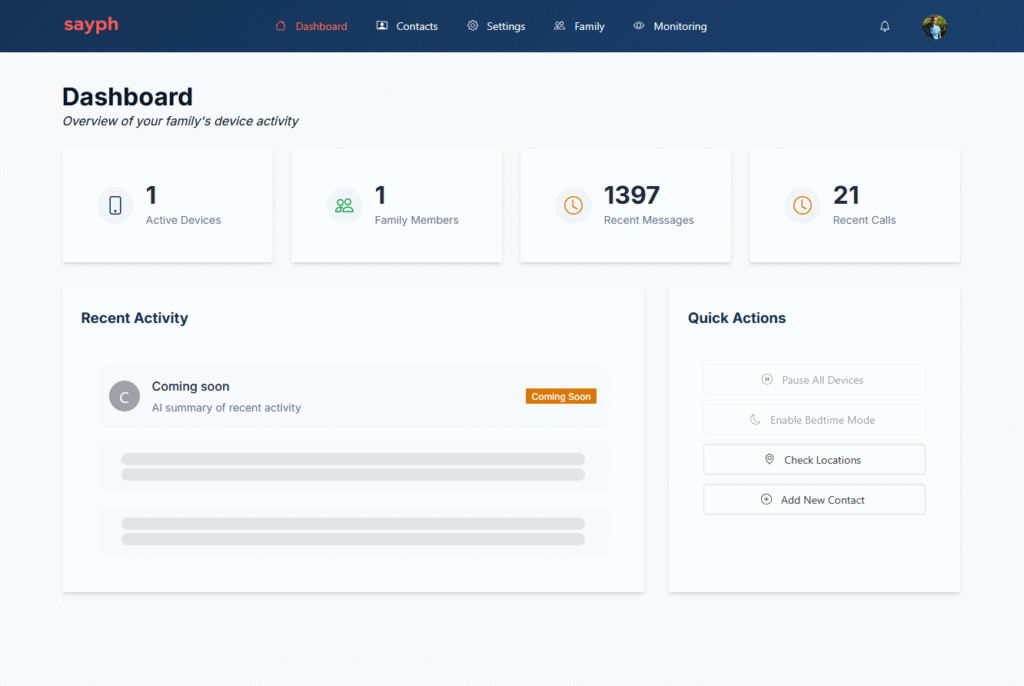
2. Open your parent/carer account by registering on the Sayph Space portal
3. Source a SIM from a network provider

4. Follow setup guidelines below

1
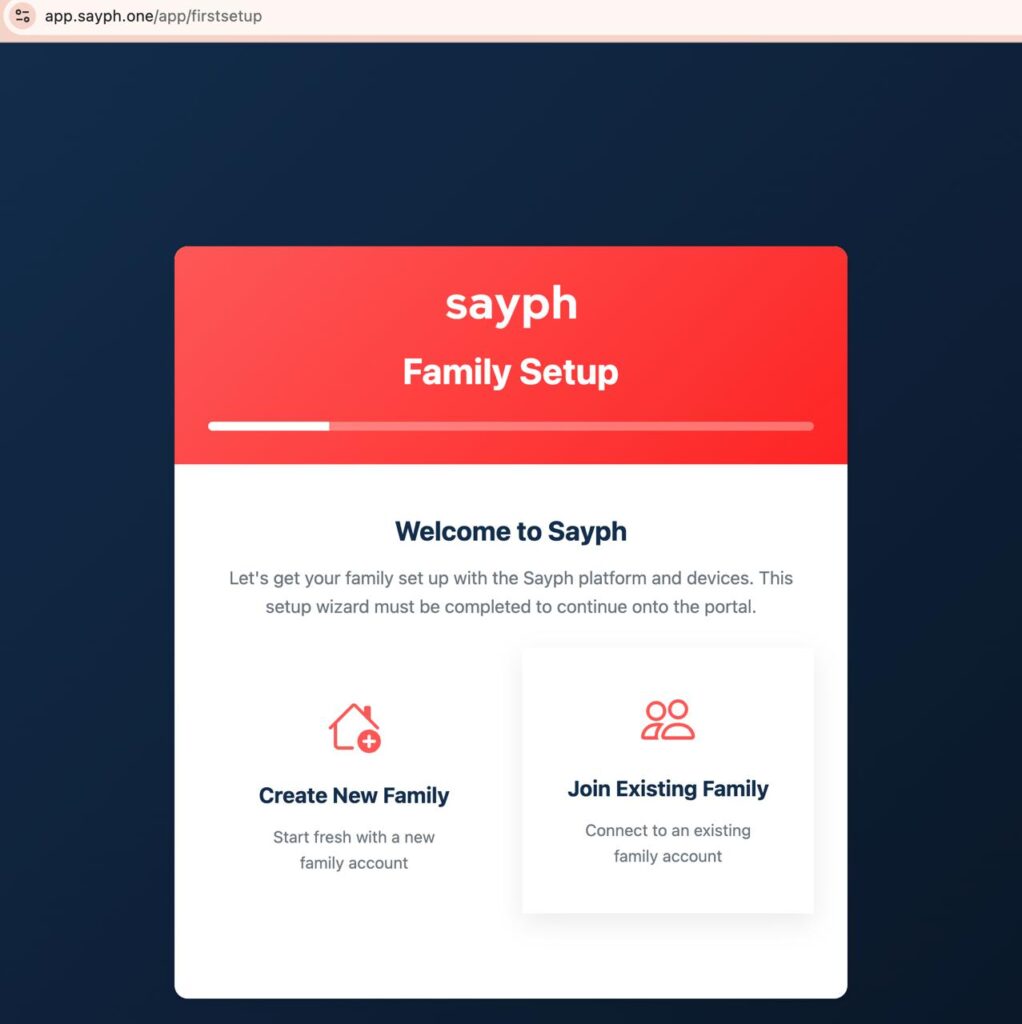
Parent/carer signs in to the Sayph Space parental control portal
Go to app.sayph.one and register if you haven’t already done so. Ensure you’ve entered your and your child’s details correctly
2
Take your phone out of the box, insert the SIM & turn on the phone
Once your phone (with the SIM inserted) boots up, you’ll need to connect to wifi (the phone should prompt you to do this, if not, swipe down from the top right to find wifi controls).
3
Enter code when prompted
The Sayph Space will display a code; enter this into the phone when prompted to link it to your account (it’s case sensitive, so enter it exactly as it appears)
Once you’ve completed initial phone setup
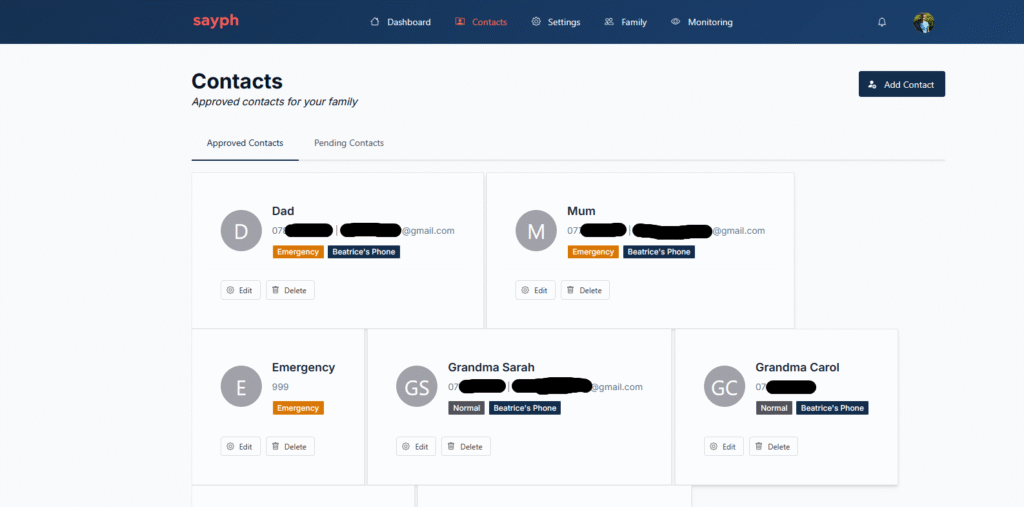
- Add Contacts
Create contacts in the Sayph Space contacts section
While logged in to the Sayph Space parent portal, select the contacts tab (top menu) and add contact information, selecting your child’s phone in the details.
If you want your child to be able to call 999 in an emergency, you will need to add this as a contact in the Sayph Space.
2. Multiple users
Add another parent or carer to the Sayph Space
If you have a partner or other carer who you would like to add to the parental controls portal, log into the Sayph Space (your own account details); in the menu bar, click on Family (2 people icon on mobile); click “Add Parent”; enter their email address when prompted; you will be shown a code which you should screenshot or note down exactly.
The second parent should then log onto https://app.sayph.one using the email address you entered on your portal. They then select “Join Existing Family” and enter the 8 digit code.https://app.sayph.one

3. Save the Sayph Space
Save our web app to your homescreen
On iPhone, in the url bar, click on the “Share” icon, then “Add to home screen”
On desktop, add to your favorites
Frequently Asked
Learn about your new phone
Got a question? We’ve got you covered! Check out the resources below and be sure to let us know if we can answer anything else.
What’s the weather?
To add the Weather app to your homescreen: Swipe down from top right; select the cog icon to open the “Settings” menu; select “Apps”; scroll down and select “Weather”; click “Weather settings”; toggle “Show on app screen” to on.
How do I set a PIN to unlock device?
Swipe down from top right; select the cog icon to open the “Settings” menu; select “Lock screen”; “Screen lock & biometrics”.
How do I have the app icons appear on my home screen?
If the app icons don’t appear automatically on the home screen, but instead are just on the tray when you swipe up: Press & hold finger on home screen; select “Home settings”; select “Deck (beta)”.
How do I set wallpaper?
Swipe down from top right; select the cog icon to open the “Settings” menu; select “Wallpapers”; choose from themes and photos

Still have questions?
Can’t find what you’re looking for? Get in touch.